
Introduction
This mode can load web addresses and still use the framework's features.
Use Cases
This is very useful for web projects that want to have a software client for their users.
Official Demo
Demo address: http://electron-egg.kaka996.com/
/**
 * Remote mode - web address
 */
remoteUrl = {
  enable: true,
  url: 'http://electron-egg.kaka996.com/'
};
Run the software to see the effect
npm run start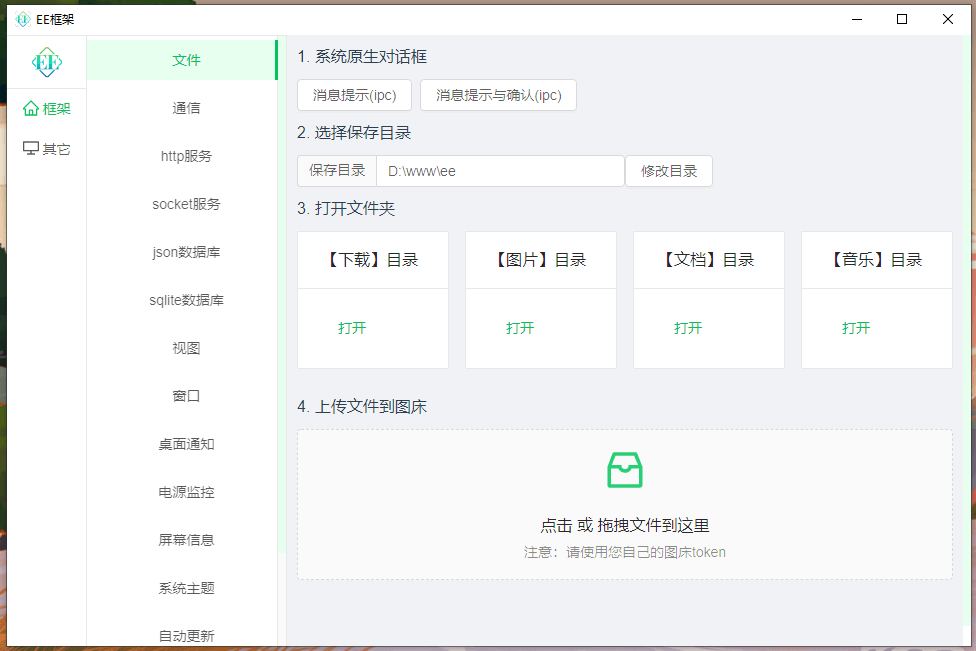
Start a Project
Development Environment
- Start the frontend
# Enter the [frontend directory]
cd frontend

# Install dependencies
npm install

# Start service
npm run dev- Configure
// config.default.js

/**
 * Remote mode - web address
 */
remoteUrl = {
  enable: true,
  url: 'Frontend service address, e.g.: http://localhost:8080/'
};- Start
npm run devProduction Environment
Place the built frontend resources on your own server, and configure nginx service and domain. Configure prod:
// config.prod.js

/**
 * Remote mode - web address
 */
exports.remoteUrl = {
  enable: true,
  url: 'Your project domain'
};

# Note
The remoteUrl object will override the remoteUrl object in config.default.js
Build Software
See Build Software, starting from step 2.
Note: Because the loaded resources are from the remote server, local frontend resources will not be used, so you can start directly from step 2.
One Frontend Code for Multiple Platforms
You can use the following code to determine whether the current (frontend) page environment is on a server or a user's computer.
const isEE = (window.require && window.require('electron')) ? true : false;Note: The demo does not distinguish between environments. There may be some errors when accessed via browser, which developers should handle themselves.
Unleash Your Imagination
Although it is a remote address, it can still send messages to the main process. Unleash your imagination and create interesting software.